ADVERTISEMENT
One phone user expected to spend one hour daily on a screen. The actual total reached three to four hours, including 47 minutes scrolling after waking and over two hours before bed. For many adults, tracking alone reveals habits that are easy to miss.
Screen time apps for adults can reveal patterns, set limits, and create space away from your phone. They are not a quick fix for smartphone addiction. A 2023 review found that apps designed to reduce phone use had results ranging from weak to strong.
The right choice depends on what you want to change and how much support you need.
ADVERTISEMENT
Key Takeaways
- Phone use may be higher than you think.
- Tracking can show when and how you use your phone.
- Screen time apps for adults offer different tools and results.
- The best app is one that fits the habit you want to change.
Start by choosing the phone habit you want to change
Before setting limits, learn when and why you reach for your phone. App usage trackers show how often you pick it up and when scrolling takes most of your time. You may notice patterns, such as checking your phone after waking or scrolling before bed.
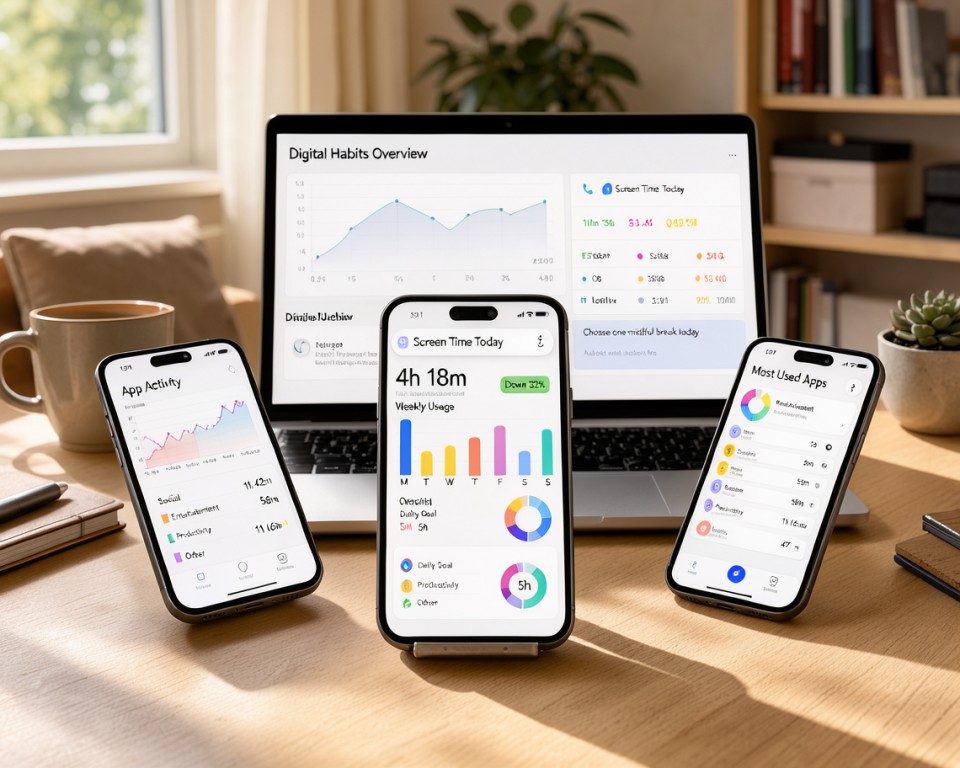
After spotting a pattern, choose one small goal. A 2023 review of 13 apps found self-tracking and goal setting among the most common features. Screen time apps for adults may also offer blocking, social tracking, games, and simpler phone layouts.
| Feature | How it can help |
|---|---|
| Self-tracking | Shows app use and phone pickups. |
| Social tracking | Lets you compare or share progress with others. |
| Goal setting | Helps you set a clear target for use. |
| Blocking | Limits access to selected apps or sites. |
| Gamification | Adds rewards or challenges to habit changes. |
| Simplification | Reduces distractions on your phone screen. |
| Assessment | Helps you review your habits and progress. |
Decide whether built-in controls are enough
Built-in features are a useful place to start. Apple Screen Time and Android Digital Wellbeing set usage limits without another phone app.
A 2023 review included these features among mobile phone management apps, along with third-party options. It found app limits showed effectiveness, but results varied across apps and more research is needed.
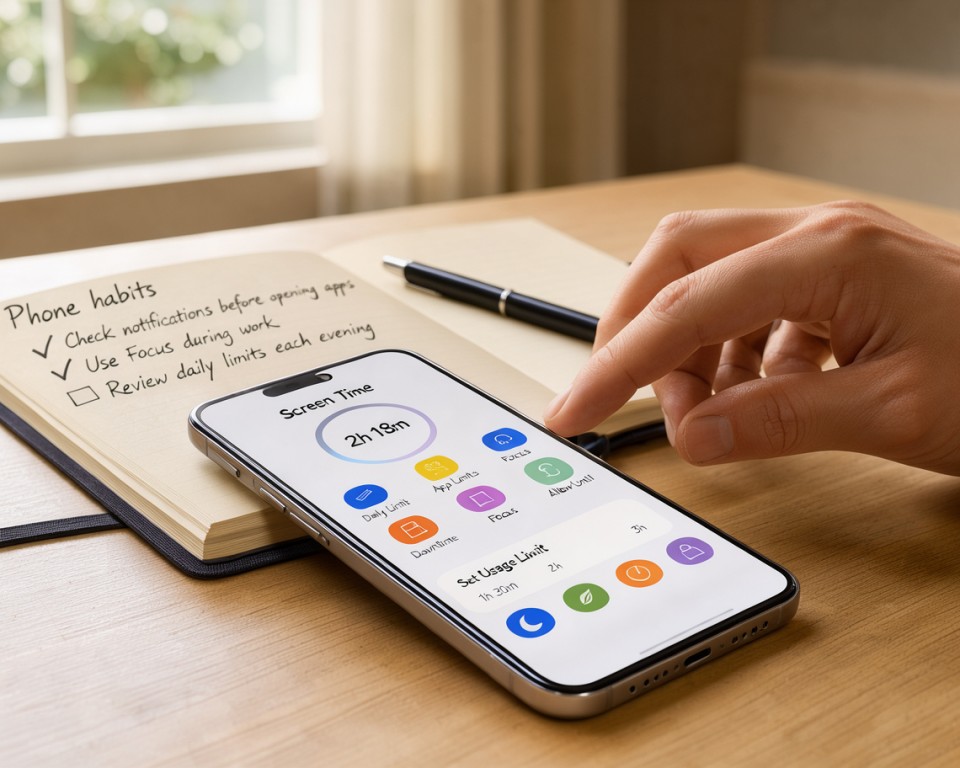
Use your phone’s controls when they meet your needs. For flexible schedules or tools across devices, compare other digital wellbeing tools.
| What to consider | Built-in controls | Third-party apps |
|---|---|---|
| Examples in the review | iOS Screen Time and Android Digital Wellbeing | Other mobile phone management apps |
| Strategy noted | App limits were one approach studied | App limits were one approach studied |
| Evidence caveat | Effectiveness varied among apps | More research is needed on app-based interventions |
Use Apple Screen Time for native iPhone limits
Apple’s iOS Screen Time is built into iPhone settings and helps manage phone use. No separate app is needed.
It may suit you if you want to explore native usage limits before trying a third-party tool. A 2023 study identified Screen Time as a built-in option but gave no setup steps or specific limit settings.
| Study detail | What it means |
|---|---|
| Built into iOS Settings | Screen Time is a native iPhone option. |
| No user reviews | The study left it out of its user-review analysis. |
Try Digital Wellbeing for native Android limits
Android Digital Wellbeing is a built-in option for managing phone use. It is a good starting point for reviewing habits before installing another app.
A 2023 study examined digital wellbeing tools, including app-use histories, goals, alerts near time limits, and scheduled blocking. The study does not confirm which features appear in every Android version, so check your phone’s settings.
Choose Freedom for cross-device blocking
Freedom can block distractions across devices. Before installing it, check supported devices and browsers, plus its current price. These details can show whether it fits your daily routine.
Compare its website blockers and app controls with your needs. Blocking apps can support focus, but clear schedules and simple settings matter too. Review current features before you commit.
Use Opal for scheduled iPhone focus sessions
Opal lets you create routines that start focus sessions at chosen times. Block distracting apps while sleeping, allow key messaging apps during work, or set a 30-minute YouTube window after dinner. These rules help screen time apps for adults fit daily life without disrupting it.
Opal is available for iOS and Android, and its daily focus score quickly shows your progress. Start with one routine, such as a work block, then adjust it as your schedule changes.
Try one sec to interrupt automatic checking
one sec adds a short pause before a selected app opens. This break can interrupt automatic checking and help you notice how smartphone addiction may shape your routine. Pair it with notification management so alerts do not keep pulling you back.
One said Instagram use dropped to eight minutes a day; another reported a 45% screen-time cut in one week. A third reported a 17-hour drop in daily screen time, from more than 19 hours. These are personal accounts, not results from a controlled study.
Pick AppBlock for customizable Android rules
AppBlock may help Android users create rules that fit their routines. Check its current features and device support before relying on it. Available research does not confirm AppBlock’s specific controls.
A 2023 study grouped blocking tools by features, including scheduled blocks, silenced alerts, and automatic app locks. These groups help compare apps, but they do not prove AppBlock offers every feature. Check its settings before replacing Android Digital Wellbeing or adding usage limits.
| What to check | What the available information supports |
|---|---|
| Blocking options | The study describes broad blocking categories, not AppBlock’s feature set. |
| Schedules and alerts | Confirm in AppBlock whether schedules or notification controls fit your needs. |
| Device support | Check current Android compatibility before setting up rules. |
Look for adult-friendly features beyond basic time limits
Time limits are one way to change phone habits. A 2023 study grouped app features into seven types: self-tracking, social tracking, goal setting, blocking, gamification, simplification, and assessment. Gamification and assessment appeared least often in the reviewed apps.
Look for app usage trackers that show when and where screen time adds up. Notification management can quiet alerts that draw you back to your phone. Focus sessions may protect time for work, rest, or reading.
Forest offers a simple visual cue: set a timer from 10 to 120 minutes. A virtual tree grows while you avoid blocked apps. If you leave to scroll, the tree withers. Forest is available for iOS and Android.
| Feature type | What it can do | Example to look for |
|---|---|---|
| Self-tracking | Shows app and screen time patterns | Daily use reports |
| Social tracking | Shares progress with others | Group goals |
| Goal setting | Helps set a clear target | Daily app limits |
| Blocking | Restricts access to selected apps | Scheduled blocks |
| Gamification | Adds rewards or visual progress | Forest’s growing tree |
| Simplification | Reduces visual or digital distractions | Grayscale mode |
| Assessment | Prompts review of phone habits | Use summaries and check-ins |
Check permissions, privacy, and accountability before installing
Before installing digital wellbeing tools, check the data an app collects and the permissions it requests. A screen-time app may need app activity access to track use, but unrelated requests need closer review.
Read the privacy policy and review data sharing, storage, and deletion options. If you use app usage trackers with a partner or coach, check what they see and whether sharing is optional.
A 2023 study examined app features and English-language reviews posted from July 2008 through December 2022. It covered 12 of 13 reviewed apps; Screen Time was excluded because it had no user reviews.
Sentiment scores ranged from 61 to 86 out of 100, suggesting users generally accepted the apps. The study did not assess each app’s permissions or privacy practices.
| What to check | Why it matters |
|---|---|
| Requested permissions | Confirm access matches the app’s tracking or blocking features. |
| Data and sharing rules | Learn what is stored, who can view it, and how to delete it. |
| Accountability settings | Choose whether progress stays private or can be shared with someone you trust. |
| User reviews | Use them to understand common experiences, not as proof of privacy or security. |
Set limits that work around your job and personal life
Build limits around your real schedule, not an ideal one. Use Forest for timed work blocks, or set Opal routines for work hours, sleep, and after-dinner viewing. Keep urgent calls and work tools available when needed.
Set clear goals and gentle alerts before you reach a limit. Scheduled blocking can protect focus sessions, while flexible usage limits leave room for breaks and personal needs.
Strict blockers can push you toward another app. If limiting Instagram Reels leads to more YouTube Shorts, adjust the rule instead of adding blocks. Screen time apps for adults may reduce phone use, though research strength varies.
Conclusion
The best screen time apps for adults help you spot habits and choose changes that fit your day. Start with Apple Screen Time or Android Digital Wellbeing. Try Freedom, Opal, one sec, or AppBlock for more control.
Check your actual phone use before setting limits. One user found three to four hours of daily scrolling after guessing about an hour. Small, clear limits can address smartphone addiction without disrupting work or family time.
Some one sec users report strong results: an eight-minute daily Instagram average and a 45% screen-time drop in one week. These are personal reports, not typical results or guarantees.
A 2023 review of 13 apps across 19 papers found several useful feature types but called for more research. Treat digital wellbeing tools as a starting point and adjust your plan as you learn what works.