ADVERTISEMENT
Life360 says 107 million people use its service, showing how many families depend on location tools. Family location sharing apps help relatives coordinate pickups, errands, and meetups without many calls or texts.
These apps use phone location services, GPS, mobile data, and user permissions to show someone’s position on a shared map. Real-time GPS tracking can help, but choose a setup that fits your family’s phones, routines, and privacy needs.
Key Takeaways
- Location apps can make daily plans easier to manage.
- Real-time GPS tracking shows a device’s location on a shared map.
- Features vary by app and may include place alerts or driving tools.
- Choose an app that works with your family’s phones and habits.
- Set clear rules about who can see each person’s location.
When family location sharing apps make everyday plans easier
When pickup times change or someone makes an extra stop, family location sharing apps help everyone stay in sync. Safe arrival notifications can tell a parent when a child reaches school or gets home, without many check-in texts.
ADVERTISEMENT
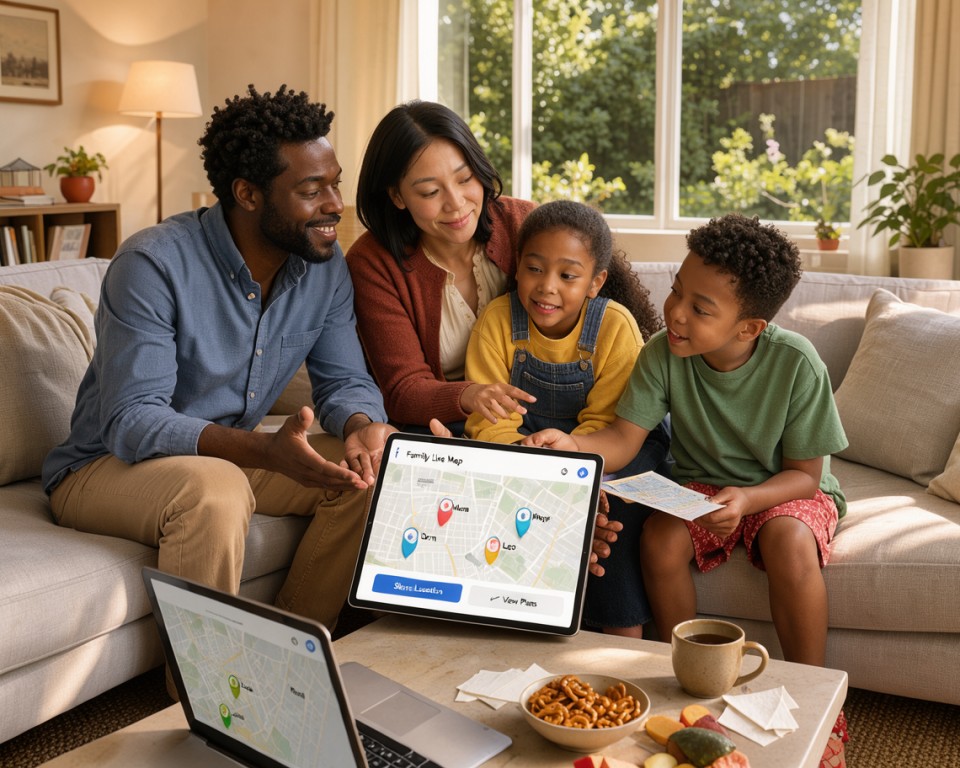
Life360’s Place Alerts notify members when someone arrives at or leaves a saved place. Location History limits vary by plan. These tools simplify plans, while geofencing, battery alerts, SOS notices, and lost-phone recovery may help some family tracking apps.
| Life360 plan | Location History | Place Alerts |
|---|---|---|
| Free | 2 days | 2 places |
| Silver | 7 days | 5 places |
| Gold | 30 days | Unlimited places |
Compare Apple Find My, Google Maps, and Life360
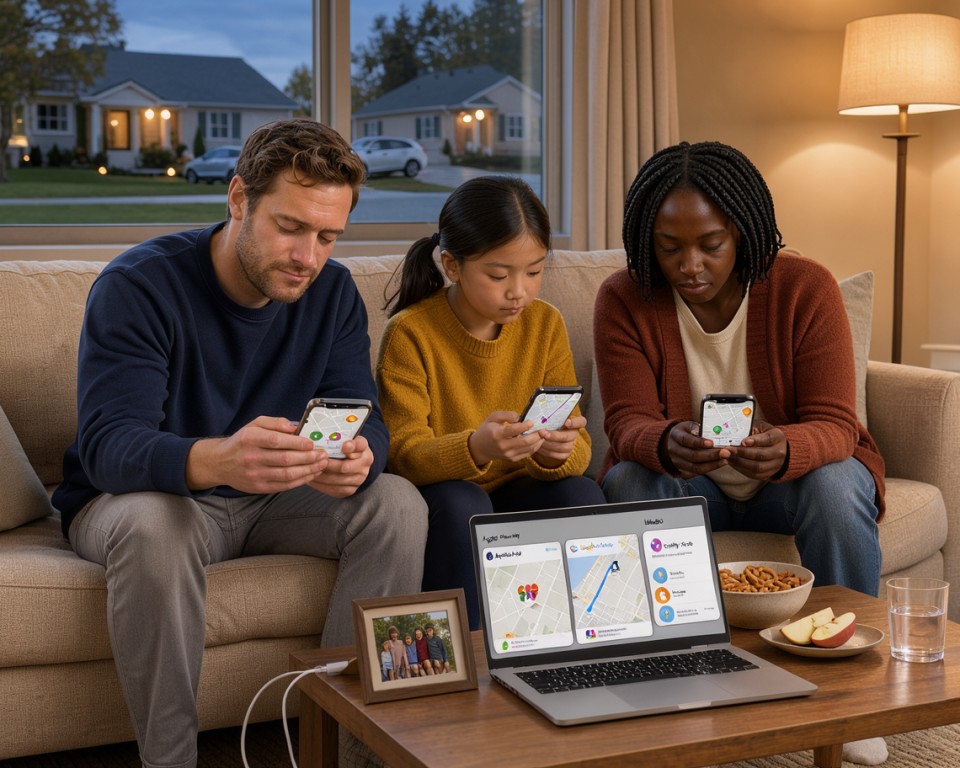
These family location sharing apps fit different phones and daily routines. Choose one that feels simple and supports consent-based tracking. Set clear rules about who can see each person’s location.
Apple Find My for families using Apple devices
For households using Apple devices, Find My may be a natural starting point. Check whether it fits everyone’s phones and comfort levels. Set clear sharing expectations so consent-based tracking works for the whole family.
Google Maps for cross-platform location sharing
Google Maps may help when family members use different types of phones. Check whether its sharing options fit your needs. Make sure everyone knows when location sharing is active.
Life360 and dedicated family safety tools
Life360 offers a free plan and paid tiers. Listed prices are $0 for Free, $9.99 for Silver, $16.99 for Gold, and $24.99 for Platinum. Benefits vary by plan and may include Location History, Place Alerts, driving summaries, crash detection, and emergency services.
Life360 also sells pet products. These include a stainless-steel QR code Pet Tag with no battery or subscription, plus a GPS tracker. The tracker provides real-time location, escape alerts, up to 14 days of battery life, and six-month Reserve Mode.
| Option | Best fit | Details to weigh |
|---|---|---|
| Apple Find My | Families using Apple devices | Review device fit and agree on sharing rules before use. |
| Google Maps | Families with different types of phones | Check the sharing options and make sure each person knows when sharing is on. |
| Life360 | Families seeking dedicated safety tools | Plans range from free to $24.99; features vary by tier and can include alerts, driving summaries, and emergency services. |
Match an app to your family’s phones and routines
Start with the phones your family uses, then check each app’s support. Choose features that match your routine, including location updates, alerts, privacy controls, and manageable battery usage.
Testing shows how an app works in daily life. Family1st tested eight tracking apps on Android and iPhone for 10 days, focusing on real-time GPS tracking, ease of use, alerts, and battery usage.
Testers used the apps during everyday routines and shared feedback across age groups. Before inviting everyone, try each app on every family member’s phone.
Check location sharing during school runs, errands, and busy days. This helps your choice fit your household without adding extra steps.
Location-sharing features that matter for daily coordination
The best tools help families plan pickups, spot delays, and confirm everyone arrived. Choose clear alerts, fast updates, and controls that match your routine. Features may vary by app and plan.
Real-time location and battery status
A live map can show where family members are during a busy day. Battery alerts matter because a nearly dead phone may stop sending updates. Check the refresh rate and whether alerts arrive reliably.
Place alerts for home, school, and work
Geofencing alerts can notify you when someone arrives at or leaves a saved place. Set them for places that support a clear plan, such as school pickup or a family member’s workplace. Some apps keep location history, but available history depends on the app and plan.
Driving, check-in, and emergency tools
Life360 includes a Family Driving Summary on its Free and Silver plans. Gold adds Crash Detection, Emergency Dispatch, 24/7 Roadside Assistance, and individual driver reports. Platinum adds 50 miles of free towing, disaster response, medical assistance, and travel support.
Life360 location history ranges from two days on Free to 50 days on Platinum. SOS tools and emergency check-ins can help families share when someone needs support. Compare these features with your needs before choosing a plan.
Set up a family location circle without oversharing
Family location circles work best when everyone knows what information is shared and why. Limit access to people who need it, and agree when sharing should stay active.
Invite family members and choose sharing settings
In Life360, shared family groups are called Circles. Invite only trusted relatives, and review each person’s sharing settings together. Discuss useful times for location sharing, such as school pickup or a late drive home.
Create useful places and arrival alerts
Save places your family visits often, including home, school, or a relative’s house. Life360 Place Alerts can send safe arrival notifications when a member reaches a saved place. The Free plan includes two Place Alerts; Silver supports five places, while Gold and Platinum offer unlimited places.
Use geofencing alerts for practical check-ins, rather than constant monitoring. Family1st reported that one customer used geofencing with a GPS device to feel less worried about an older parent’s whereabouts.
Protect privacy with clear family rules
Location sharing works best when everyone knows what gets shared and why. Set clear rules first, and include children in age-appropriate talks about privacy.
Decide who can see each person’s location
Choose who needs access, and keep the circle small. Explain when location data can help with plans or safety. This makes consent-based tracking a shared choice, not a surprise.
Review permissions, history, and notification settings
Check app permissions on each phone, then review location history and alerts. Family1st includes privacy among the areas assessed in its 10-day app test. AirDroid Parental Control asks for several permissions during setup, while some iOS monitoring features face Apple system limits.
Check each app’s current settings before relying on a feature.
Agree on when location sharing can be paused
Set times when sharing may pause, such as during private activities. Make sure children know how to find child privacy settings, and discuss changes together. Family1st’s review notes that mSpy lacks a location-sharing feature with user consent.
Check that a tool supports consent-based tracking before choosing it.
Use location alerts safely during common family routines
Location alerts can simplify daily plans when everyone understands what they can and cannot do. Treat an alert as a helpful cue, not proof that someone is safe or ready for pickup.
School drop-offs, pickups, and after-school activities
Set safe arrival notifications for places such as school, home, or practice. FamiSafe shows live locations and alerts family members when a child enters or leaves a saved zone. AirDroid geofence alerts work similarly, and kids should know who receives alerts and when.
Travel, errands, and meeting in crowded places
Real-time GPS tracking can help relatives meet at a busy venue or follow a travel day. Also agree on a meeting spot if a phone loses signal or runs out of battery. For driving emergencies, Life360 Gold includes Crash Detection and Emergency Dispatch; Platinum adds travel support and medical assistance.
Checking in with older children and relatives
Use brief emergency check-ins when plans change, rather than expecting constant location updates. FamiSafe’s SOS alert can share a device’s location during an urgent moment. Make sure each person knows how to use it and who will respond.
Know the limits of location sharing apps
A map pin may arrive late or show the wrong place. A phone may also lose signal or power. Family1st reviews battery usage, location accuracy, privacy, and alert reliability, but its report gives no measured battery results. Treat app updates as helpful cues, not proof of someone’s location.
Apps may ask for broad access to a phone. Family1st reports that AirDroid needs several permissions, while Apple system rules limit some iOS monitoring features. mSpy has limited screen-recording features on newer iPhones and offers no consent-based location-sharing tool. Check child privacy settings and choose tools that fit your family’s needs.
Location history can vary by plan. Life360 keeps two days of history on its Free plan and up to 50 days on Platinum. Before sharing, review what an app stores, who can view it, and how long it stays available.
Conclusion
The best family location sharing apps match your family’s phones, routines, and comfort level. Compare Apple Find My, Google Maps, and Life360 before choosing.
Use consent-based tracking, set clear rules, and share only what each person needs. Safe arrival notifications can support pickups and daily plans, but they should not replace conversation or trust.
Check plan details before paying. Life360’s prices and Place Alert limits vary by tier. Its listed Platinum Location History limits differ across plan details, so review them carefully.
Location sharing works best as a practical aid, not a safety guarantee. Keep settings current, respect pauses, and choose tools that make daily coordination easier for everyone.