ADVERTISEMENT
Nine apps can turn one class PDF into nine study tools. Some make it easy to highlight readings, while others help you add comments, write by hand, or organize lecture notes.
Drawboard’s roundup compares Drawboard PDF, Adobe Acrobat, Microsoft Edge, PDF-XChange Editor, Notability, PDF Annotator, Wondershare PDFelement, Goodnotes, and Xodo. This guide explores how PDF annotation apps for students support study habits and simplify digital textbook markup.
Key Takeaways
- PDF apps offer different tools for reading, writing, and organizing class materials.
- Some apps focus on typed comments and highlights.
- Others support handwritten notes and lecture materials.
- The best choice depends on your study habits and devices.
- A simple markup routine can make review easier.
Choose a PDF annotation app for your study style
Start with your study habits instead of the longest feature list. Pen-first learners may prefer Drawboard PDF for handwriting and live collaboration. On an iPad, Goodnotes and Notability support handwritten notes and audio features that can help during review.
ADVERTISEMENT
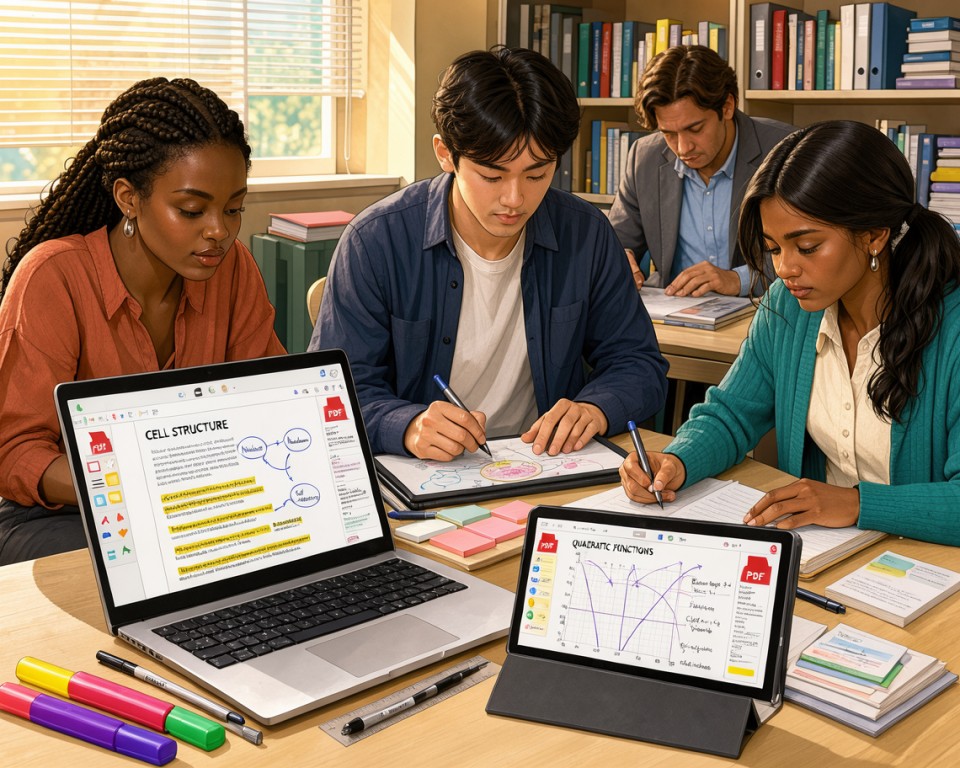
For quick browser markup, try Microsoft Edge. Xodo offers browser-based annotation across platforms.
Flexcil combines a PDF reader, digital notes, annotations, and reference tools on one page. Its web version lets you switch between a tablet and a PC.
The right fit can make accessible study workflows easier to keep up with. Choose PDF annotation tools that match your devices and how you read, write, and review.
Adobe Acrobat Reader and Xodo for typed PDF markup
Adobe Acrobat and Xodo offer useful tools for marking up course readings. Both support PDF highlighting and comments, but their features and prices differ.
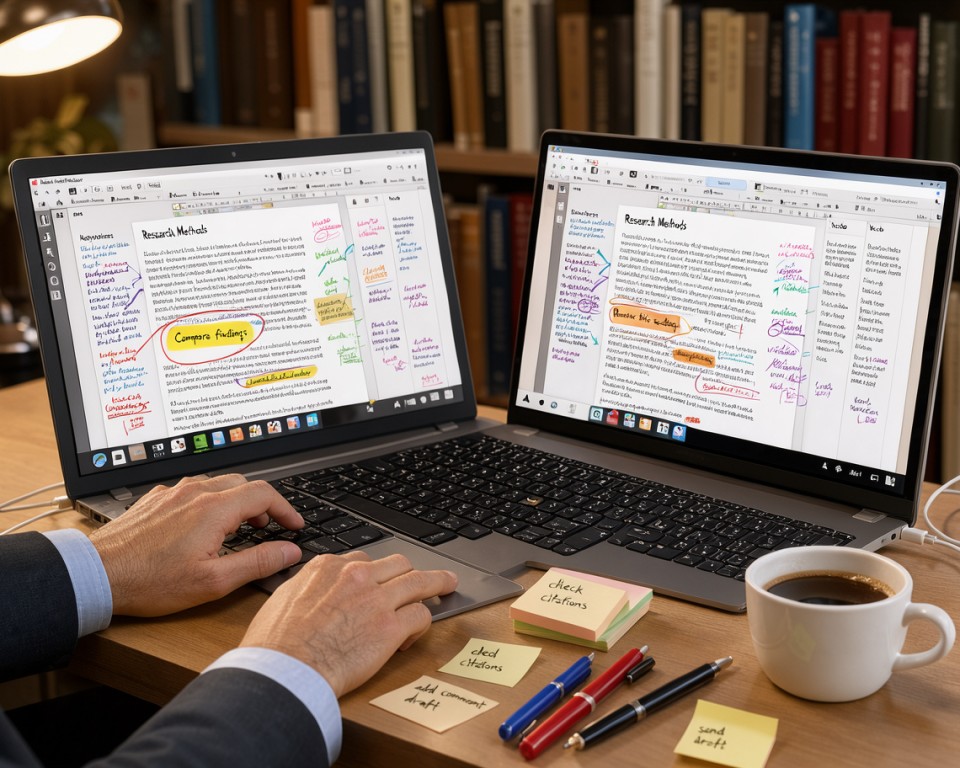
Adobe Acrobat Reader for reliable comments and highlights
Acrobat includes highlights, comments, stamps, and drawing tools. OCR makes scanned pages searchable before you mark them up. Compare and redaction tools support document review, while Microsoft 365 and SharePoint help teams work together.
Individual plans start at $12.99 per month for Standard and $19.99 for Pro. Acrobat Pro for Teams costs $23.99 per user each month. The AI Assistant add-on costs $4.99 per month.
Xodo for quick markup across devices
Xodo offers highlights, comments, shapes, and freehand drawing. It saves edits to the file and supports cross-platform PDF annotation across devices. The desktop version adds OCR, redaction, and form creation, but pricing details are not provided here.
| App | Markup and review tools | Other features | Listed pricing |
|---|---|---|---|
| Adobe Acrobat | Highlights, comments, stamps, and drawing | OCR, compare, redaction, Microsoft 365, and SharePoint support | Standard: $12.99/month; Pro: $19.99/month; Pro for Teams: $23.99/user/month; AI Assistant: $4.99/month |
| Xodo | Highlights, comments, shapes, and freehand drawing | Saves edits to files; desktop adds OCR, redaction, and form creation | Pricing details not provided |
Goodnotes and Notability for handwritten class notes
For students who think best by writing, Goodnotes and Notability turn a tablet into a flexible study space. Both support Apple Pencil handwriting and PDF markup, making lecture slide note-taking feel like working on paper.
Goodnotes for handwritten annotations and study notebooks
Goodnotes lets you write on PDFs, highlight key points, add typed text, and build study notebooks. Its stylus handwriting tools include shape recognition, a ruler, and a lasso for neat diagrams. You can search handwritten notes or convert them to typed text.
Optional audio recording links playback to your written notes. Goodnotes Cloud supports backup and storage across several platforms. Its strongest experience is on iPad and Mac.
Goodnotes 6 plans start at $11.99 per year, while AI Pass costs extra each month.
Notability for combining PDFs with lecture notes
Notability imports PDFs and keeps them with notes organized by subject and folder. Add Apple Pencil writing, highlights, text boxes, or shapes to lecture slides. Audio recording syncs with handwritten notes, so tapping a word or diagram plays related audio.
Optional AI tools can create summaries, flashcards, and quizzes. Notability does not offer real-time collaboration or cross-platform support. Its plans range from a free Starter option to paid tiers, including Standard at $14.99 per year and Unlimited at $99.99 per year.
| App | PDF and handwriting features | Study tools | Plans and platform notes |
|---|---|---|---|
| Goodnotes | Apple Pencil writing, highlights, typed text, shapes, and direct PDF annotation | Searchable handwriting, text conversion, diagrams, and linked audio playback | Goodnotes 6 starts at $11.99 per year; AI Pass costs extra. Works across platforms, with the strongest experience on iPad and Mac. |
| Notability | Apple Pencil writing, highlights, text boxes, shapes, and PDF import | Subject and folder organization, audio linked to notes, plus optional AI summaries, flashcards, and quizzes | Free Starter, Standard at $14.99 per year, Plus at $19.99 per year, and Unlimited at $99.99 per year. No cross-platform support or real-time collaboration. |
LiquidText and OneNote for connecting notes to source pages
Some study tools keep ideas close to the pages that sparked them. LiquidText links ideas within documents, while Microsoft OneNote stores PDFs beside class notes. Both support clear course material organization.
LiquidText for linking ideas across a document
When reading moves between themes, connect related points as you work. LiquidText helps you trace links across a document, making useful quotes or claims easier to revisit. Pair each note with a short cue that explains why it matters.
Microsoft OneNote for storing PDFs with course notes
Keep each reading near the notes you make for its class. In Microsoft OneNote, organize PDF material with lecture notes and topic headings. Use clear labels so linked study notes are easier to find during review.
Compare free and paid features before you commit
Free plans handle basic highlights and comments. Paid tiers may add tools needed for class. Compare PDF annotation app pricing with trial limits, device access, and extra fees.
Readings saved as images may need OCR for scanned readings. This tool changes page text into searchable words. Drawboard PDF includes OCR with Pro Plus, which may help find terms in long readings.
| App | Free option | Paid plans and key details |
|---|---|---|
| Drawboard PDF | Basic plan; seven-day trial for all plans | Pro Lite: $4.19/month; Pro Plus: $6.99/month, with OCR; Pro Unlimited: $13.33/month. Three-year educator and student discounts are listed for Pro Plus and Pro Unlimited. |
| Adobe Acrobat | No free plan details listed here | For individuals, Standard is $12.99/month and Pro is $19.99/month. |
| PDF-XChange Editor | Free version; premium tools add watermarks | Editor: $62 one time; Editor Plus: $79 one time. Optional maintenance costs 20% and includes upgrades and priority support. |
| Notability | Starter plan | Annual plans range from $14.99 to $99.99. |
| PDF Annotator | No free plan details listed here | Perpetual license: $79.95 per user; two years of Upgrade Assurance: $39.94. |
| Wondershare PDFelement | No free plan details listed here | Single-platform annual plans: $79.99 for Windows and $89.99 for Mac. Annual, two-year, and perpetual plans are listed; AI credits start at $3.99/month. |
| Goodnotes | No free plan details listed here | Goodnotes 6 plans start at $11.99/year. Extra AI features require a monthly AI Pass. |
| Flexcil | Schools and educational institutions can apply for free use | Prices are not stated in the available details. |
| Xodo | Prices are not stated in the available details | Prices are not stated in the available details. |
| LiquidText | Prices are not stated in the available details | Prices are not stated in the available details. |
| Microsoft OneNote | Prices are not stated in the available details | Prices are not stated in the available details. |
Match the app to your devices and file workflow
Choose an app that works on the devices you use for class. Drawboard PDF runs on Windows, macOS, iOS, Android, and the web. It syncs across devices and connects to Dropbox, SharePoint, Google Drive, and OneDrive.
Notability works only on Apple devices. Goodnotes is built for iPad, iPhone, and Mac, with limited features on other platforms. On Windows, PDF-XChange Editor and PDF Annotator support Surface tablets. PDF Annotator keeps files on your device and works offline, but sharing requires manual file transfer.
Flexcil Web lets you move between a tablet and a PC. Its cloud sync saves handwritten notes for review on a smartphone and supports Box, Google Drive, iCloud, Dropbox, and OneDrive. Before choosing PDF apps for multiple devices, check which services fit your cloud sync for class materials.
Use a repeatable workflow to review PDFs faster
A few simple steps can focus each study session. Set up your file, mark key ideas, and revisit notes before a quiz or class.
Prepare the PDF before reading
Open the PDF in your preferred app and choose a comfortable view. Flexcil offers single-page, two-page, and four-page views. For long readings, Microsoft Edge Read Aloud can speak the text while you follow along.
Annotate with purpose while you study
Use highlights for key ideas, comments for questions, and handwritten notes for quick explanations. Flexcil’s masking pen can hide text for recall practice.
Its audio recording can sync with handwriting, while Notability links lecture playback to notes. These audio-linked lecture notes make it easier to revisit a point without searching through a full recording.
Review highlights and comments after reading
Scan your marks and turn unanswered questions into a short study list. Goodnotes can search handwriting, convert ink to text, and create summaries or quizzes. Add this review step to your PDF reading and review workflow so important details stay easy to find.
Keep annotated PDFs organized, searchable, and easy to share
Give each course a folder, and use clear file names with the class and date. Goodnotes searches handwriting, changes ink into text, and exports annotated PDFs by email or cloud storage. These tools make searchable PDF notes easier to find near exams.
Notability groups notes by subject and folder, with handwriting search and iCloud sync in its Standard plan. Flexcil syncs handwritten notes and connects to Google Drive, Dropbox, Box, iCloud, and OneDrive. Store organized class materials in the same cloud account as your other course files.
Drawboard PDF syncs with third-party storage, so you can open files on another device without moving them by hand. Its Store + Share feature lets people annotate one file and see updates across devices in real time.
| App | Useful organization feature | Sharing or sync option |
|---|---|---|
| Goodnotes | Searches handwriting and organizes documents | Export annotated PDFs by email or cloud storage |
| Notability | Groups notes into subjects and folders | Handwriting search and iCloud sync in Standard |
| Flexcil | Keeps handwritten notes synced | Connects with Box, Google Drive, iCloud, Dropbox, and OneDrive |
| Drawboard PDF | Opens synced files across devices | Store + Share supports shared, real-time annotation |
Conclusion
The best PDF annotation apps for students depend on your study habits, devices, and file management needs. Goodnotes and Notability support handwritten notes on Apple devices, while Flexcil combines PDF reading, notes, and reference links.
For other needs, Drawboard PDF offers cross-platform sync and live collaboration. Acrobat and PDFelement can recognize text in scanned PDFs, while Microsoft Edge provides free, browser-based markup. Compare features and pricing before choosing a tool.
After choosing, follow a simple routine: prepare each file. As you read, mark key ideas, then review your notes and organize your PDFs. The right accessible digital study tools can make review easier and help you find useful information faster.