ADVERTISEMENT
A 2026 comparison tested more than 30 planning apps on iOS, Android, web, and desktop. This range shows how tablets can help you plan a busy week in many ways.
The best digital planner apps for tablets fit your planning style, from handwriting to time blocks and task lists. Choose clear weekly planning layouts, helpful reminders, and tools that work across your devices.
Options include Goodnotes, Todoist, TickTick, and Google Calendar. This guide explains what to consider when choosing an app that keeps your priorities in view.
ADVERTISEMENT
Key Takeaways
- Choose an app that fits your planning style.
- Compare weekly views, handwriting tools, and time blocking.
- Check calendar sync, reminders, and offline access.
- Make sure the app works with your tablet and stylus.
- Review free plans, subscriptions, and purchase options.
Decide how you want to plan your week
First, choose what you need to see quickly. A weekly plan helps set goals, balance work, and track habits. An hourly schedule assigns tasks to specific time blocks.
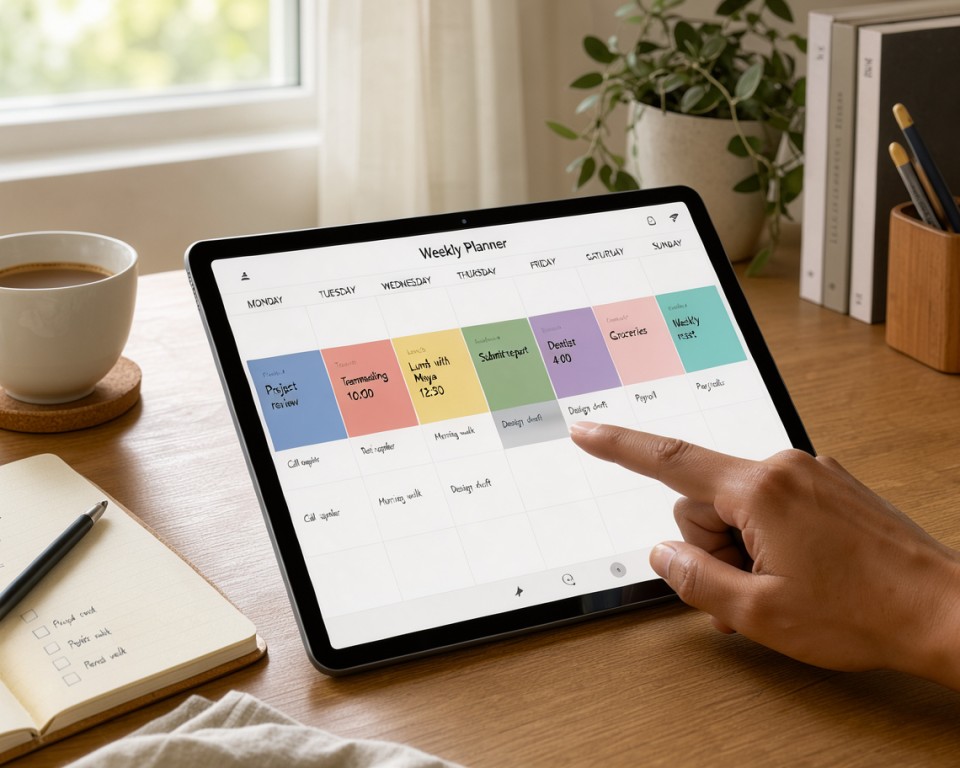
Consider how you prefer to work. Some people like handwriting and flexible weekly planning layouts. Others prefer reminders, shared calendars, or task lists that sync across devices. Good calendar and task management should simplify your routine, not add steps.
Todoist organizes projects, tags, recurring tasks, and notes, but it lacks a built-in calendar view. Compare this task focus with apps offering time blocking, habit tracking, offline access, and calendar integrations.
| Planning style | Best for | What to look for |
|---|---|---|
| Big-picture weekly plan | Goals, workload balance, and habits | Clear weekly views and flexible layouts |
| Hourly schedule | Appointments and focused work blocks | Time blocking, alerts, and calendar links |
| Task-first list | Projects, chores, and deadlines | Recurring tasks, tags, and quick search |
Explore handwritten planner apps for flexible layouts
Handwritten note-taking apps can make weekly planning feel like paper, with room to move tasks and notes. Goodnotes, Notability, and Noteshelf each fit a different planning style.
Goodnotes for customizable digital planner pages
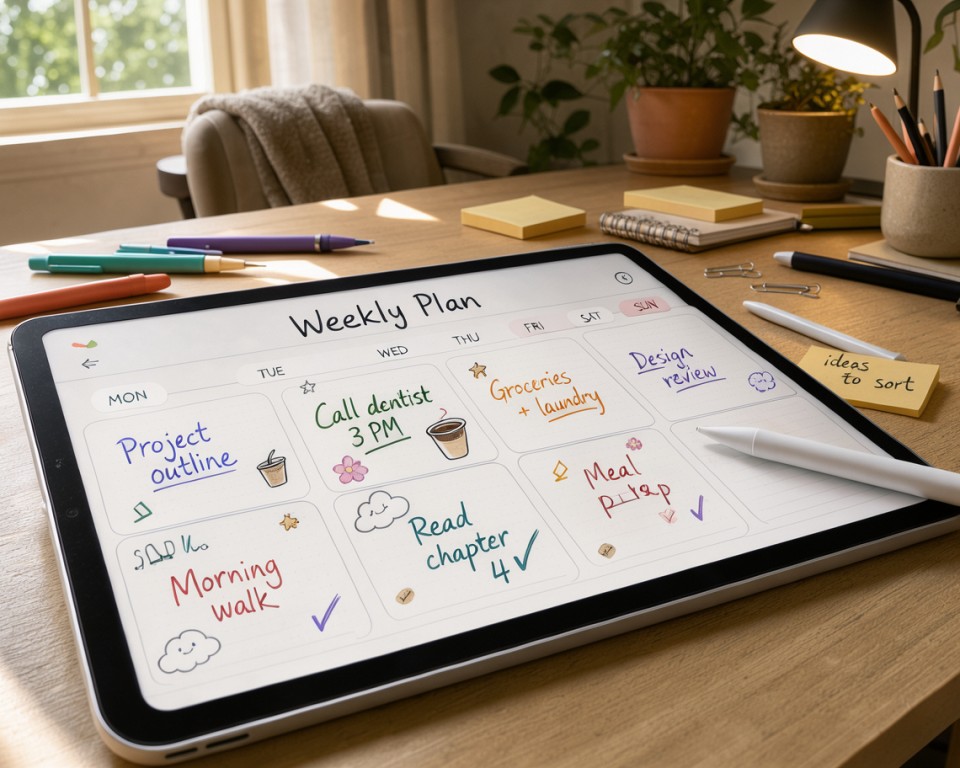
Goodnotes supports PDF weekly planner templates, imported spreads, and custom page layouts. Write with Apple Pencil or another stylus, and link audio recordings with notes. Full offline access helps when Wi-Fi is out.
Goodnotes 6 costs $29.99 one time. It is available on iOS, iPadOS, and Mac, with limited web access for Android and Windows.
Notability for handwritten notes and annotations
Notability suits people who want to combine handwriting with page markups. Compare its tools with other PDF annotation tools when reviewing plans and adding quick notes.
Noteshelf for paper-like planning on a tablet
Noteshelf may appeal if you prefer a paper-like feel. Check stylus compatibility on your tablet before choosing, since writing comfort can affect planner use.
| App | Planning style | Useful detail |
|---|---|---|
| Goodnotes | Flexible planner pages | Supports PDF templates, custom spreads, and offline use. |
| Notability | Handwriting and annotations | Consider it for handwritten notes and page markups. |
| Noteshelf | Paper-like planning | Consider it if a familiar writing feel matters most. |
Use calendar-first apps to protect time for priorities
Calendar-first apps place appointments and work blocks on a timeline, making busy weeks easier to scan. They support calendar and task management by showing your available time before you add more tasks.
Structured for visual daily schedules
Structured suits people who like seeing each day’s shape at a glance. Use its visual schedule to reserve time for key tasks, meals, and breaks. Clear weekly planning layouts can make a packed routine easier to read.
Fantastical for calendar-based time blocking
Fantastical is a calendar-focused option for people who plan with time blocks. Reserve space for focused work beside fixed events, giving priorities a place in your day. Check the app’s current tools and plan details to see whether they fit your routine.
Google Calendar for shared events and appointments
Google Calendar offers a weekly grid, shared calendars, event invitations, notifications, and basic widgets. Calendar syncing can keep plans visible across devices, while shared calendars make coordination easier for family or coworkers. The app is free and has a 4.4 out of 5 rating in the cited review.
For broader calendar and task management, pair calendar events with a separate task list. For example, TickTick offers weekly and agenda views alongside your appointments.
Try task-first apps for deadlines and recurring chores
Deadlines and repeat chores can crowd your week, but a focused task list keeps them visible. Digital planner apps for tablets offer ways to sort work, build habits, and manage daily errands.
Todoist for projects and priority lists
Todoist organizes tasks into projects with labels, priorities, filters, and recurring due dates. Add notes, forward tasks by email, or use natural-language input to set a date.
Drag and drop items, search across lists, and sync tasks across computers, phones, browsers, and Apple Watch. It lacks a built-in calendar view, so it may work best alongside a calendar app.
TickTick for tasks, habits, and reminders
TickTick combines to-do lists with calendar views, a habit tracker, and recurring reminders. It also includes a Pomodoro timer for focused work, countdowns, filters, and planning statistics. Natural-language date recognition can speed up task entry.
Offline access lets you review a list without a connection. These features support calendar and task management in one app.
Microsoft To Do for simple personal checklists
Microsoft To Do suits people who want a straightforward place for personal checklists. Use it to keep errands, chores, and small goals together without building a complex project system. Its simple approach makes daily tasks easier to scan and manage.
Check app availability before choosing a tablet ecosystem
Before choosing a tablet, check its apps and supported tools. Reviewing platform access and stylus compatibility can save time later.
iPadOS and Apple Pencil compatibility
Goodnotes runs on iOS, iPadOS, and Mac. Its web version gives limited access on Android and Windows. It supports Apple Pencil and other styluses, making it a flexible choice for handwritten plans on an iPad.
Android tablet and S Pen compatibility
On Android, review each app’s listing and test its writing tools before building your routine around it. S Pen support can vary by app and device, so do not assume every feature works. Availability for digital planner apps for tablets may also differ across platforms.
Test the tablet controls you will use every day
Before choosing a planner, test the actions you use most: writing, marking pages, typing, and switching between apps. A quick test can show whether the controls feel natural on your tablet.
Handwriting, highlighting, and drawing tools
Test how smoothly you can write, highlight, and sketch. Goodnotes supports Apple Pencil and other styluses, while its PDF planner templates use familiar page layouts. Some handwritten note-taking apps, such as Notion on iPad, support scribble input; check stylus compatibility before choosing.
If you plan to mark up planner pages, test the app’s PDF annotation tools with your own files. Goodnotes can sync audio recordings with notes, which may help when planning during a meeting or class.
Keyboard support and split-screen planning
Connect a keyboard and try typing a task or editing an event. Open your calendar beside your planner to see whether split-screen planning fits your routine. These tests can show whether an app works well with your daily habits.
Find weekly views that keep busy schedules readable
A clear weekly view helps you spot busy days before they arrive. Compare weekly planning layouts to scan appointments, tasks, and free time.
Weekly calendar and agenda views
TickTick offers yearly, monthly, weekly, daily, agenda, and multi-day views. TeuxDeux takes a simpler approach, showing tasks for the next five days in paper-like columns you can rearrange. For calendar and task management, choose your detail level; Todoist lacks a calendar but connects with popular calendars.
Time blocking for focused work
Use a weekly grid to reserve time for important work, errands, and breaks. TickTick pairs its weekly calendar with a Pomodoro timer to support focused work sessions.
Widgets for quick access to priorities
Widgets put key tasks and events on your tablet’s home screen. Google Calendar offers a weekly grid and basic widgets, while TickTick provides widgets and notifications. These tools make calendar and task management easier between commitments.
Confirm syncing, reminders, and offline access
Check how an app handles updates, alerts, and work without a connection. Reliable cloud synchronization keeps plans current across devices, while offline access helps when Wi-Fi is out of reach.
Cross-device syncing
Todoist syncs across Mac, PC, web browsers, iPhone, Android, and Apple Watch. Cozi can keep shared grocery lists up to date across users’ devices. Check that an app supports the tablet and phone you use most.
Notifications and recurring reminders
TickTick offers constant reminders and repeat schedules by week, month, year, or a custom interval. Calendar integrations can keep those alerts close to your appointments. Review notification settings so important tasks stand out without creating too much noise.
Offline planning and backup options
TickTick and Goodnotes offer offline access, so you can review or update plans without a live connection. Before choosing an app, check how it handles backups and whether you can export important notes. Backup details vary, so confirm the available options in the app.
Compare free plans, subscriptions, and one-time purchases
Pricing helps you choose digital planner apps for tablets that match your routine. Some offer useful free tools, while others charge for extra features or a permanent license. Before paying, check whether your plan includes offline access.
Free versions and trial periods
Todoist, TickTick, Notion, Floret, Google Calendar, and Ultimate Planner offer free options. Todoist’s free version supports basic planning, while its paid plan adds more tools. Trials help you test an app first: TeuxDeux offers a one-month trial, and Things has a free trial.
Subscription features
Subscriptions often add features for projects, reminders, or team use. Todoist Pro costs $4 per month or $48 per year. TickTick Premium costs $3.99 per month or $35.99 per year.
Other listed plans include Floret Pro at $4.99 per month or $29.99 per year, and Sunsama at about $20 per month. Motion costs about $19 per month, while Akiflow costs $15 per user per month.
Compare the tools you will use most, including digital planner apps for tablets, and check whether offline access is included. A monthly fee may suit you if the app saves time each week.
One-time purchases
A one-time payment may suit you if you want to avoid recurring charges. Goodnotes 6 costs $29.99, while Things costs $49.99 after its free trial. Check which devices and future updates the purchase covers before choosing.
Build a weekly planning routine inside the app
A short review can turn a crowded calendar into a workable plan. Use the same steps each week, then adjust them to fit your schedule.
Capture fixed commitments first
Add appointments, work shifts, and school events before flexible plans. This gives your weekly planning layouts a clear frame and reveals open time.
Add priorities, tasks, and time blocks
Choose a few key goals, add related tasks, and schedule focused work. Todoist supports recurring tasks, while TickTick offers calendar views and reminders. Use calendar and task management to track due dates and planned work.
Review unfinished items before the new week
Check what remains, move important tasks, and remove items that no longer fit. Confirm cloud synchronization is on, so updates appear across your devices.
| Planning step | What to add | Why it helps |
|---|---|---|
| Set the frame | Appointments and fixed events | Shows when you are already committed |
| Plan the work | Top goals, tasks, and focus blocks | Reserves time for important work |
| Review the week | Open tasks and changed priorities | Keeps the next plan realistic |
Conclusion
The best digital planner apps for tablets should match your planning style. Choose a calendar-first app to block time or a task manager to track deadlines. Use handwritten note-taking apps for flexible pages and quick notes.
Before choosing one, check that it works well with your tablet and supports your tools. Choose offline access if you need to plan without a connection. Clear weekly planning layouts can also make busy days easier to scan.
Start with a simple weekly routine: add fixed events, set a few priorities, then review what remains. A planner you enjoy opening is more useful than one packed with features you never use.